Objects & Nodes
The Object3D node system — the scene tree, every node kind, transforms, parenting, selection, and visibility.
Everything you place in a scene is an Object3D node: a box, a light, a camera, a piece of text, a speaker. Nodes live in the scene tree, move with transforms and gizmos, and can parent each other so groups move as one. This page introduces the node system the whole editor is built on.
The scene tree
Open Structure in the rail's settings group. The drawer's Scenes tab lists every scene with its nodes nested underneath; the DOM tab lists the page's own elements.
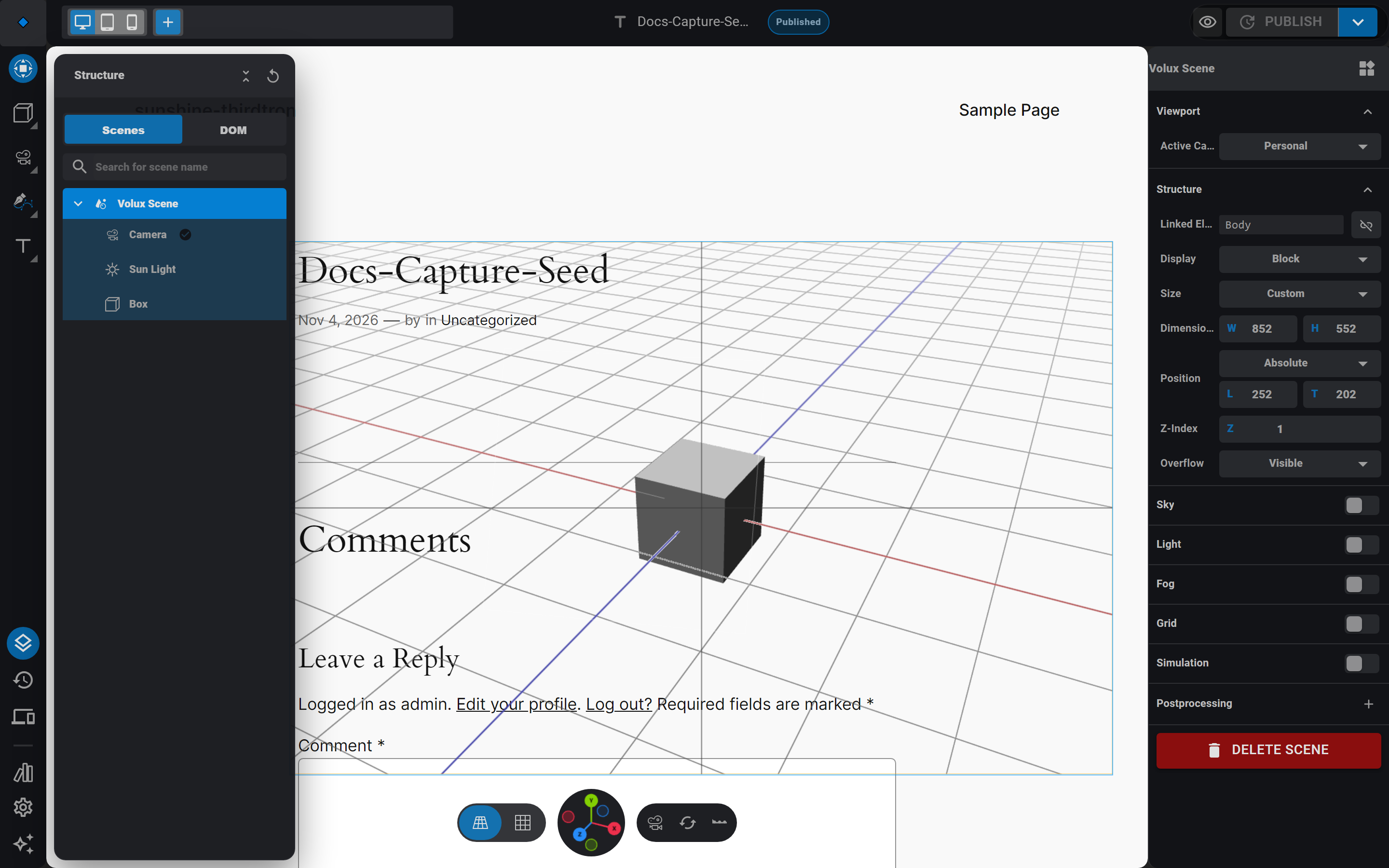
The tree is the editor's map of the scene. Clicking a row selects the node (the viewport gizmo appears and the right panel switches to it); hovering a row outlines the object in the viewport, and hovering the object highlights the row back. Rows are draggable — drop one row onto another to re-parent it.
Node kinds
The rail's tool column adds nodes to the active scene. Each kind carries its own settings section in the object panel:
- Primitives — mesh shapes in four groups: Mesh (box, sphere, cylinder, cone, capsule), Flat (plane, circle, ring), Curved (torus, torus knot), and Polyhedra (tetrahedron, octahedron, dodecahedron, icosahedron). Every primitive takes full material layers and mesh editing.
- Lights — Point, Sun, Spot, and Area. Every scene seeds a sun; new lights land in the Objects flyout. See Lighting.
- Camera — the viewpoint visitors see through. Scenes seed one at creation. See Cameras.
- Text — live 2D-ish text rendered by a fast text engine; ideal for headings you still retype. Text 3D — real extruded mesh text with full material layers. See Text & Curves.
- Curves — Bézier curves and circles with a pen and a freehand tool; usable as motion paths and 2D fills. See Text & Curves.
- HTML — a real DOM element pinned into the 3D scene (labels, buttons, embedded markup).
- Particles and Force Field — GPU particle systems and scene-wide force fields.
- Speaker — 3D-positioned audio.
Pro modules add their own kinds to the Objects flyout; a kind missing from your flyout means its module is not active. See Editions & Licensing.
Transforms and gizmos
Selecting a node shows its gizmo: arrows to move, handles to scale, rings to rotate. Transform in the rail switches between the three modes, and G / S / R grab them from the keyboard.
The Transform section on the right panel holds the numeric truth — Position / Rotation / Scale — always in world-facing numbers you can type. Snapping (0.5 world-unit steps for movement, 15° for rotation) lives in the Scenes panel's Viewport row, and V always returns you to the plain transform tool.
Parenting
A child node inherits its parent's transform: move the parent and the children follow. Two ways to parent:
- Drag in the tree — drop an object row onto the row it should live under. The editor refuses drops that would nest an object inside its own descendant.
- Group — select several objects and press Ctrl+G (Cmd+G on macOS): the last-selected becomes the parent and the rest nest under it, world positions unchanged.
Parenting matters for scene components and events: cross-object references survive re-parenting, so a button wired to a light keeps working when both move into a group.
Selection
- Click selects; the gizmo appears and the panel follows.
- Shift-click extends the selection, and Shift-drag draws a marquee box around several nodes at once. With several selected, the panel adapts to the shared properties.
- Right-click opens the context menu with per-type actions (frame the selection, set the default camera on cameras).
- Lights and cameras have no solid surface to click — an invisible selection sphere around each one handles their clicks instead.
Keyboard first
Press Tab to drop into mesh edit mode on a selected mesh; Escape backs out. The full keyboard table lives in Keyboard Shortcuts.
Visibility
Each node carries a visible flag per state. Toggle it with the eye icon beside a state in the panel's States section — the base state's eye hides the object everywhere.
Hiding is soft: a hidden object keeps its identity, its runtime state, and its in-flight transitions; it just stops rendering, and pointer events go dead with it. Unhide and it picks up exactly where it was.
Next
- Cameras — the node that decides what visitors see.
- Materials (Layers) — surfaces for your meshes.
- 3D Objects & Mesh Editing — go deeper on meshes.
Documents & Scenes
The document container, the scenes it holds, and saving whole scenes as reusable snapshot copies.
Cameras
The editor view versus the scene camera, default cameras per band, lock-to-view, and switching cameras at runtime.
Last updated on