Events & Actions
Wire visitor interactions — mouse, keyboard, distance, collision, drag — to actions on objects and page elements.
Events make content interactive: a visitor clicks, hovers, or gets close, and the object's action list fires. This guide covers adding events to 3D objects, what each trigger fires on, which actions are offered where, and the special drag interaction. DOM page elements use the same editor with a smaller trigger set — see the end of this page.
Interactions run on the public site
Events fire for visitors on the published page, not in the editor canvas. Verify them on the frontend — click the eye icon beside PUBLISH to open the page the way visitors see it.
Add an event to an object
- Select the object and find the Events section on its panel. Click +.
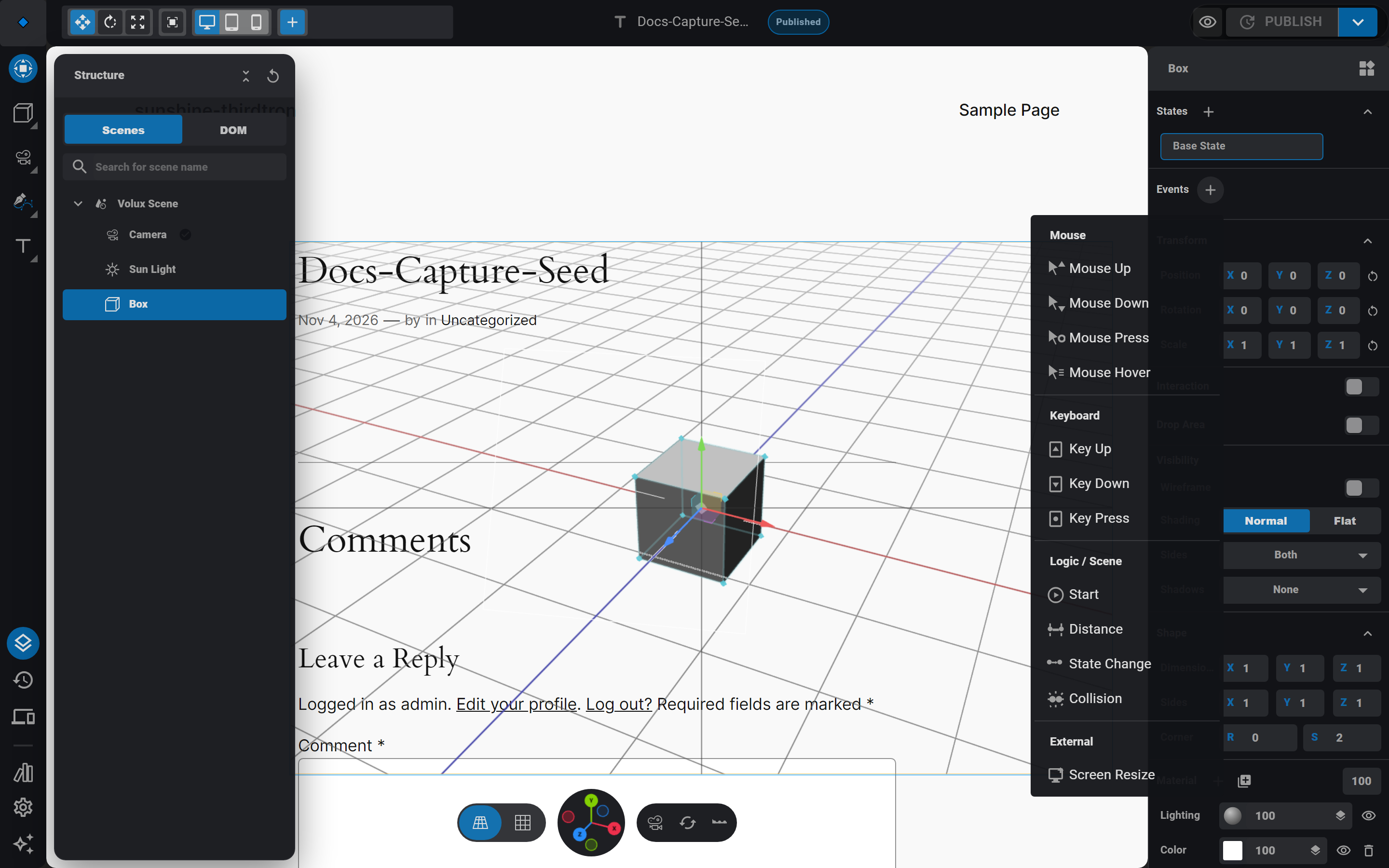
- The add menu groups the triggers that actually fire:
- Mouse — Mouse Up (the click), Mouse Down, Mouse Press, Mouse Hover.
- Keyboard — Key Up, Key Down, Key Press. Key events carry the key they listen for.
- Interaction — Drag & Drop (hidden until the object's drag is armed — below).
- Logic / Scene — Start (scene load), Distance (a target enters or leaves a range), State Change (another object's state flips), Collision (physics contact starts or ends).
- External — Screen Resize (the viewport crosses a device band).
- Click a trigger to add it. The event editor opens where you stack its actions.
Stack actions
- In the event editor, click the add button on the action list and pick an action: Transition (tween the object — or a target object or element — into one of its states), Open Link, Switch Camera, Particles Control, Speaker Control, Video, Physics Control, Timeline Animation, Create Object, Destroy Object, or Apply Force.
- Each action carries its own config row — a Transition picks target and state slots, Open Link takes a URL and a tab mode, and so on.
- Condition events — Distance, State Change, Collision, Screen Resize, and Drag & Drop — carry a Branch toggle: actions on the Then list fire on the enter edge, Else fires when the condition exits.
- Reverse on Release (Mouse Press and Mouse Hover only) re-runs the action list backwards on the disengage edge — a transition animates the object back to where it started.
The menu only offers what makes sense
The action add menu filters per event. Switch Camera isn't offered on Scroll; Open Link isn't offered on Screen Resize, Collision, or drag events; spawning actions (Create Object, Apply Force, Particles Control) skip Mouse Hover so a hover can't spam. Transitions and Timeline Animation are offered everywhere.
Arm a drag
Drag & Drop is a per-frame interaction, not a moment trigger: the object follows the pointer while grabbed. The mechanics live on the object itself, not in the event.
- Select the object and open its Interaction section. Flip the section's switch on and set the Mode to Drag. The Drag block exposes the cursor, damping (higher = more lag), the drag plane (aligned with the camera, adaptive, or fixed XY/XZ/YZ), per-axis limits, and drop snapping.
- With drag armed, the Drag & Drop event becomes addable on that object. Its Then actions fire at grab (after a 3-px slop so a click is never a drag) and its Else actions fire after the drop lands — a transition authored in Else never fights the snap tween.
- Drop targets: objects marked as drop areas (their Interaction section has the Drop area switch, optionally grouped) highlight green while you drag. Set what the mesh does on release — stay, return to its original spot, or return to the last snapped target.
- Arming a drag suppresses presentation controls (rotate/orbit) on that same object — they would fight over the same pointer-down.
Target other objects
Actions that point at something — Transition's target, Switch Camera's camera, Apply Force's body — default to the event's own object and accept any object in the document, across scenes. A Transition's state list can also pick the Live slot: whatever state the target is in at the moment of the fire.
Debugging a pointer event that never fires
If clicks reach an object on the frontend but its event never runs, inspect the mesh in the browser console: an event count of zero (mesh.__r3f.eventCount === 0) means the event handlers never reached the mesh — the event list is attached to a different or stale object. Also check that no drag session is holding the object: a grab claims the mesh and swallows mid-drag fires until the drop lands.
Elements on the page
Page elements — the DOM around your scenes — carry the same states and events. Open the Structure drawer, switch to the DOM tab, and click an element row: its panel carries States, Events, Structure (the reverse scene-link lookup), and Visibility.
- Element triggers are exactly three: Mouse Up (click), Mouse Hover, and Scroll. Keyboard, distance, and the rest are object-only.
- Element transitions tween opacity and transform only — the compositor-friendly pair.
- The overlay of an HTML object, unlike an element, never emits pointer events; it is a target only. See HTML Overlays & DOM Interactivity.
Next
- States — what a Transition actually tweens.
- Publishing & Frontend Behavior — where the event engine runs.
- Timeline & Keyframes — the Timeline Animation action's other half.
Timeline & Keyframes
Key object transforms on the timeline — clips, auto-key, the K key, transport, and physics baking.
HTML Overlays & DOM Interactivity
Mount real HTML content in 3D scenes, drive it with states, and wire page elements to scene interactions.
Last updated on