Video Layers & MaskingPro
Play video assets inside material layers, control them from events, and mask them against other layers.
This feature is part of Volux Pro Pro. Video layers play a video asset on any object's surface — a screen showing footage, a texture that moves. This guide covers adding one, driving it with events, and the layer mask that carves one layer with another.
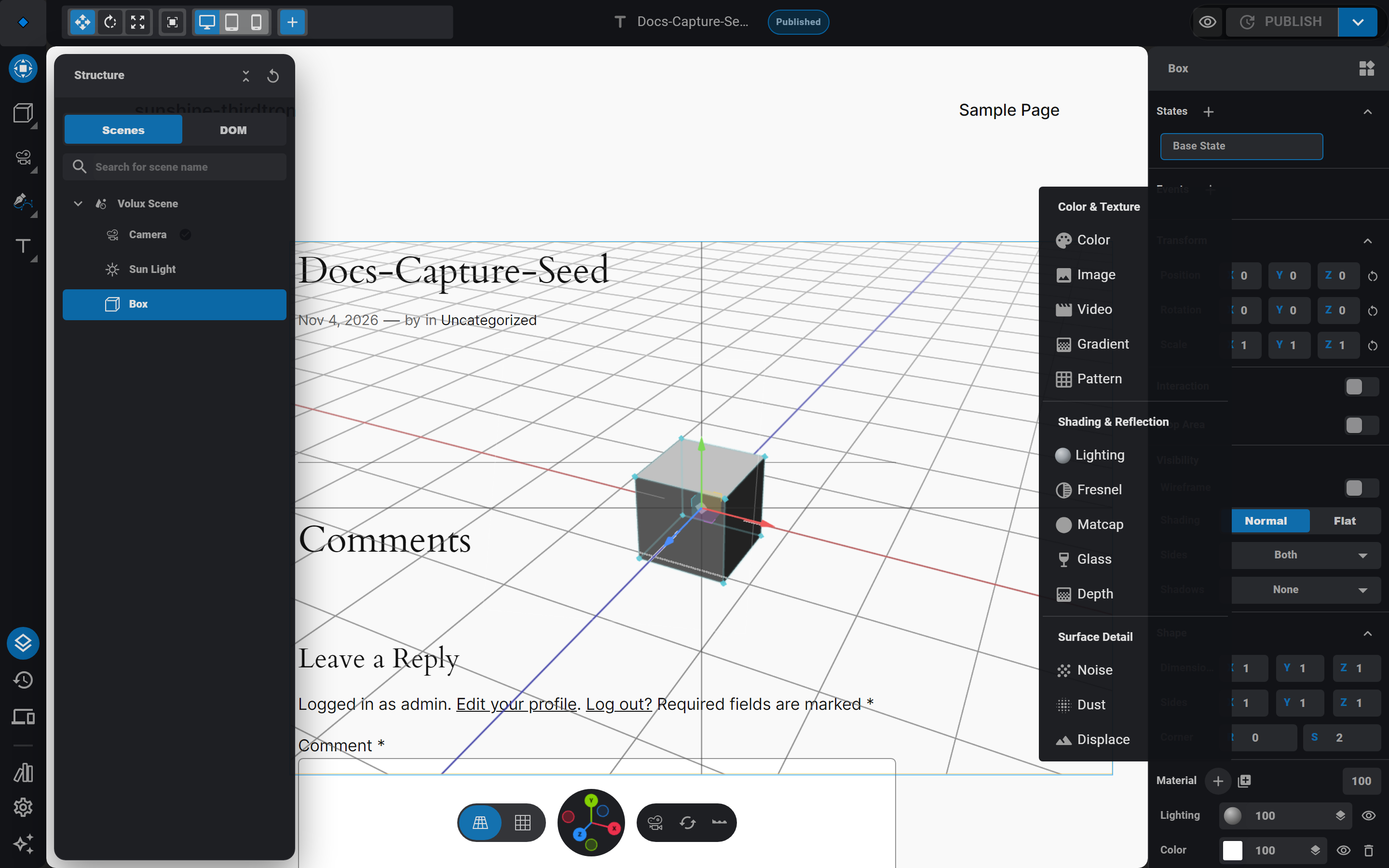
Add a video layer
- Select an object and find its Material section — the layer stack.
- Click Add material layer and pick Video from the menu. The new layer lands at the top of the stack (index 0 is the visual top).
- In the layer's flyout, attach a video from My Assets — mp4 and webm both work.
- Set the playback rows: Volume, a start Delay in seconds, Loop, and Autoplay.
The layer shares the image layer's UV surface, so the same position/scale/rotation texture transforms apply. A paused video costs nothing — frames decode only while it plays.
Autoplay starts muted if the browser insists
On the published page the video first tries to autoplay with your authored volume; if the browser blocks unmuted playback, it retries muted — and stays muted. Design for sound-off.
Drive it from events
The Video action controls any object's video layers: play, pause, or stop (stop rewinds to the start). Point it at an object — leaving the target empty targets the event's own object — and optionally a specific layer; no layer means every video layer on the target at once. A click trigger on the object itself that plays its own video is the one-step setup.
Mask one layer with another
Mask mode turns a layer into a stencil: it paints nothing itself, and its own brightness × opacity decides how much of the layer directly below it shows through. Bright areas reveal; dark areas carve away.
- Add a second layer above the one you want to carve — an Image with a black-and-white pattern or a Noise layer both make good masks.
- Open that new layer's flyout and switch on Mask Mode. The stack row gains a purple arrow badge.
- Reorder with drag if needed: the mask affects only its immediate neighbor below.
Masks are strictly adjacent
A mask multiplies only the layer directly beneath it — never the whole stack. A mask stacked on top of another mask is ignored (its neighbor is a mask, not a paintable layer), and so is a mask at the bottom of the stack.
Mask mode is available on the texture-bearing kinds — image, video, noise, pattern, matcap, depth, gradient, fresnel, and dust. Color and lighting layers can't mask.
Next
- Materials & Texturing — the layer stack this builds on.
- Events & Actions — triggers for the Video action.
- Assets & Libraries — uploading video into My Assets.
Post-ProcessingPro
Scene-wide post effects — bloom, depth of field, vignette and friends — as a reorderable per-scene stack.
Audio (Speakers)Pro
Positional and ambient audio through speaker objects — spatial falloff, directional cones, and autoplay with the first-gesture unlock.
Last updated on