Physics SimulationPro
Rigid-body physics for your scenes — simulation settings, participant objects, state-driven body properties, and baking to keyframes.
This feature is part of Volux Pro Pro. Physics turns your scene's meshes into rigid bodies — boxes fall, bounce, and settle under gravity on the published page. The editor never simulates; it only edits the settings, so authoring stays instant and the simulation runs for your visitors.
Turn on simulation
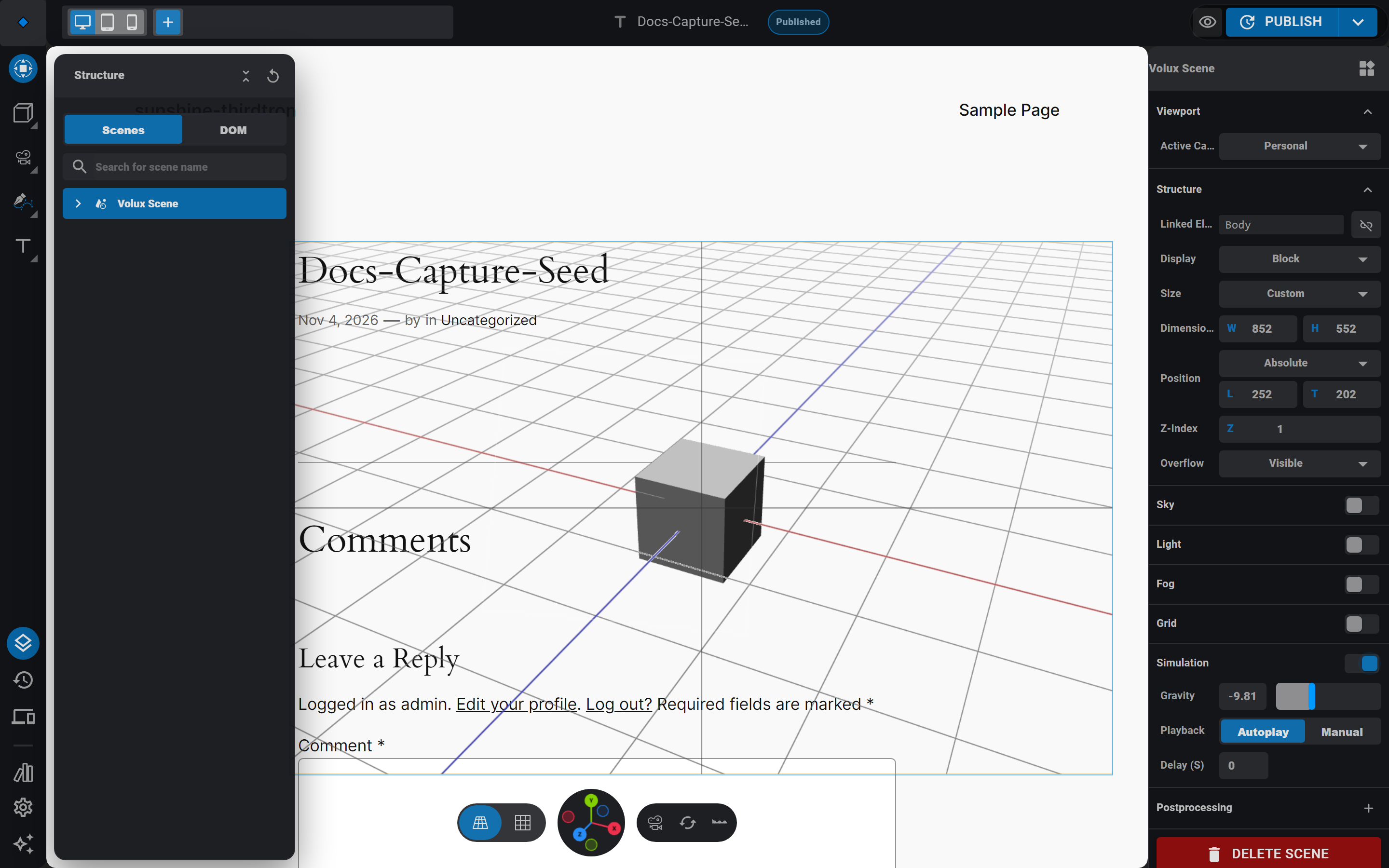
- Select the scene in the Structure drawer. The right sidebar shows the scene panel — open its Simulation section.
- Switch the section's enable toggle on, and set gravity (default −9.81, Earth's pull in m/s²).
- Optional: set a playback window — Autoplay holds every body until a delay in seconds passes; Manual holds everything until a Physics Control action fires
start.
The simulation engine (Rapier) loads lazily — about 2 MB fetched only when a scene enables physics, so pages without physics never pay for it.
Make an object participate
Simulation is a scene setting; participation is per object. Select any mesh and open its Physics section:
- enable — Yes (always participates), Based on visibility (participates only while inside the active default camera's view), or No.
- Body type — Dynamic reacts to the simulation (falls under gravity); Positioned stays put and acts as a fixed collider, like a floor or wall.
- Collider — Simple (a fast box fitted to the object's bounds) or Precise (a trimesh traced from the actual geometry — better contact, slower).
Dynamic bodies carry weight, grav. scale, friction, damping, and bounce, plus per-axis lock translation / lock rotation switches for constrained motion — a puck that slides but never tumbles.
Hidden means absent
An object hidden in its current state does not participate at all — show it, and it joins the world; hide it, and it leaves. "Based on visibility" adds a second gate: the body only runs while the scene's default camera can see it.
Tune bodies per state
State flips adjust live bodies mid-simulation. Edit weight, friction, damping, bounce, or the axis locks while a non-base state is active, and the edit copies into that state — flipping states in an event or on scroll re-tunes the body in place, without teleporting it or killing its velocity.
Three properties never vary per state
Body type, the collider shape, and the participation mode are structural — they shape the simulation world itself, so they stay per-object and cannot be varied per state. Flip those with the Physics section's own controls, not states.
Hand off to animation with kinematic tweens
A Transition action that moves a participating object to a new pose over a duration becomes a kinematic sweep: the body is carried along the exact tween path (colliding with whatever it passes), then handed back to the simulation at the target pose at rest. Author the transition as usual — the physics tier picks it up automatically when the object participates.
Control the simulation from events
The Physics Control action drives a whole scene's simulation: start, pause, resume, reset, or toggle. With no scene chosen, it targets the event's own object's scene. Reset is a rewind, not a reload — every body returns to its serialized starting pose and velocity in place.
Bake a fall into the timeline
Want the fall as exact keyframes — for example, to run in the editor preview or layer under other clips? Bake it: scroll the object's panel to the Bake fall from physics block in the Animations section, set the duration and sample rate, and bake. The computation runs headless and lands as an ordinary clip in one undo step. The bake records the fall — the object keeps participating in the live simulation. Keep physics on to stay live, or turn physics off and play the baked clips from events; re-baking the same state replaces the take.
Next
- Timeline & Keyframes — where the physics bake lands.
- Events & Actions — triggers for Physics Control and state flips.
- States — how per-state copies of body properties work.
Particles & Force FieldsPro
GPU-simulated particle emitters shaped by scene-wide force fields — emission, velocity, playback, and the control action.
Post-ProcessingPro
Scene-wide post effects — bloom, depth of field, vignette and friends — as a reorderable per-scene stack.
Last updated on