States
Interaction states that restyle objects and page elements when visitors hover, click, or scroll.
A state is a saved look of an object: a set of values it takes on at a certain moment. When a visitor hovers a button, it can grow and glow; when they click a light switch, a lamp can dim. Each of those moments is a state, and interactions switch between them. This page explains how states work, what they own, and what they can (and cannot) change.
Every object starts with a base state
Every object has a States section on its panel, seeded with a single state named Base State. The base state is the object's everyday look — the values it carries when nothing is happening. Visitors see the base state until an interaction switches them.
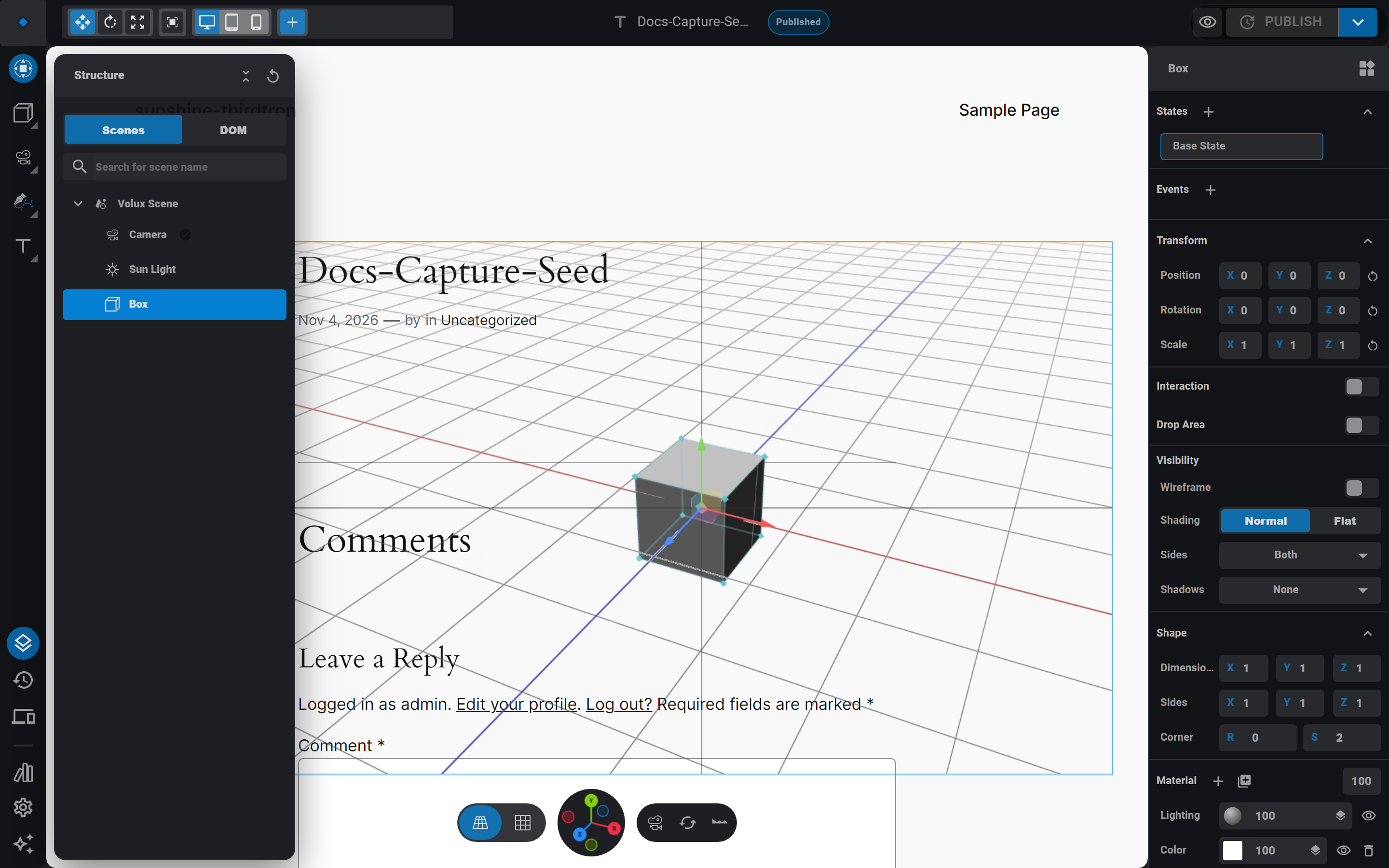
Add a new state with the + button in the section header. Each row in the list shows the state's name (click to rename), an eye icon for its visibility, and a delete icon. The base state cannot be renamed or deleted — it is the object's identity.
A state owns what you edit in it
Editing inside a non-base state captures the whole settings of that part of the object into the state — a snapshot, taken the first time you touch that kind of setting there. After that, the state owns its copy:
- Later changes to the base look never leak in. Dim the base light to 1.5, then set the state to 0.2; next month you change the base to 3 — the state still shows 0.2.
- A new state starts as a copy of the state that was active when you added it, so building variants is incremental: duplicate the hover look, then darken it for the pressed look.
- There is no "revert to inherited" — if you want a state to match the base again, edit its values.
What a state can vary
A state can restyle most of what makes an object look and behave:
- Visibility — the eye icon beside each state hides the object while that state is active. Hidden objects stop rendering and stop receiving clicks; unhiding restores them mid-flight.
- Transform — position, rotation, scale, and dimensions. A card can slide 20 units right on hover.
- Materials — a state can carry its own layer stack: different colors, textures, even a glass look.
- Lights — color, intensity, beam angle, penumbra, even the light kind. The headline state use: lights that dim, warm up, or change color on click.
- Physics hot slots — weight, friction, bounce, damping, gravity scale, and the per-axis motion locks. These flip in place on live physics bodies; the structural choices (body mode, body type, collider shape) are deliberately not state material.
- Sound — volume, loop, playback rate, and even the track itself (switching tracks restarts the audio).
- Text — content and color; swap a heading's copy when a visitor clicks it.
- Camera field of view — a punch-in on interaction.
- Particles — appearance (colors, size, fades, sprite, blending, rotation) and velocity (speed, spread, direction); live particles keep drifting, new spawns use the new values.
- Force fields — strength, falloff, noise — the whole record hot-applies.
- Drag controls — enabled flag, speed, snap-back.
- Constraints — each constraint's settings and its
enforceblend weight (see Modifiers & Constraints).
What never varies per state
A few things are deliberately excluded, for good reasons:
- Particle seeds and simulation space — they are the particle system's replay identity. Changing them per state would restart the whole simulation mid-page.
- Operator stacks — the lists of events, modifiers, constraints, and animation clips never vary per state. A state can retune a constraint's settings, but it cannot add or remove the operators themselves.
- Editor-only flags — things like the camera's lock-to-view are authoring tools, not visitor-facing values.
The rule of thumb: states change values visitors would perceive, not the structure of the scene. Anything whose change would rebuild geometry mid-interaction stays put.
Switching states on the page
States switch through events. Add an event to an object (Mouse Up, Mouse Hover, Start, and friends — see Events & Actions) and stack a Transition action on it: pick a target, pick the states it should run through, and set the tween between them. Hover and press events can also run their actions in reverse when the interaction ends, so a hover-grow un-grows automatically.
The Transition action is where you feel the difference between state tiers: visibility and sound settings flip instantly, transforms and material colors tween smoothly, and a light-swap re-arms the lamp without a flicker of the scene.
Elements have states too
Page elements (the DOM tree) carry their own states with display, pointer-events, opacity, and transform. See HTML Overlays & DOM.
Next
- Responsive Bands — tune a state differently per device.
- Events & Actions — the triggers that flip states.
- Timeline & Keyframes — keyed animation, the other motion tool.
Cameras
The editor view versus the scene camera, default cameras per band, lock-to-view, and switching cameras at runtime.
Responsive Bands
Width bands, per-band values, and how every prop decides what varies per device.
Last updated on