Text & Curves
Live text, extruded Text 3D meshes with material layers, and the Bézier curve tools — pen, presets, and freehand draw.
Volux renders text two ways — a fast Text tool for headings you still retype, and a Text 3D tool that extrudes real geometry you can light, material, and sculpt — plus a full Curves toolkit for drawing Bézier lines and shapes. This page covers what each tool is for, how fonts resolve, and how the curve tools work.
Text: live, always retypeable
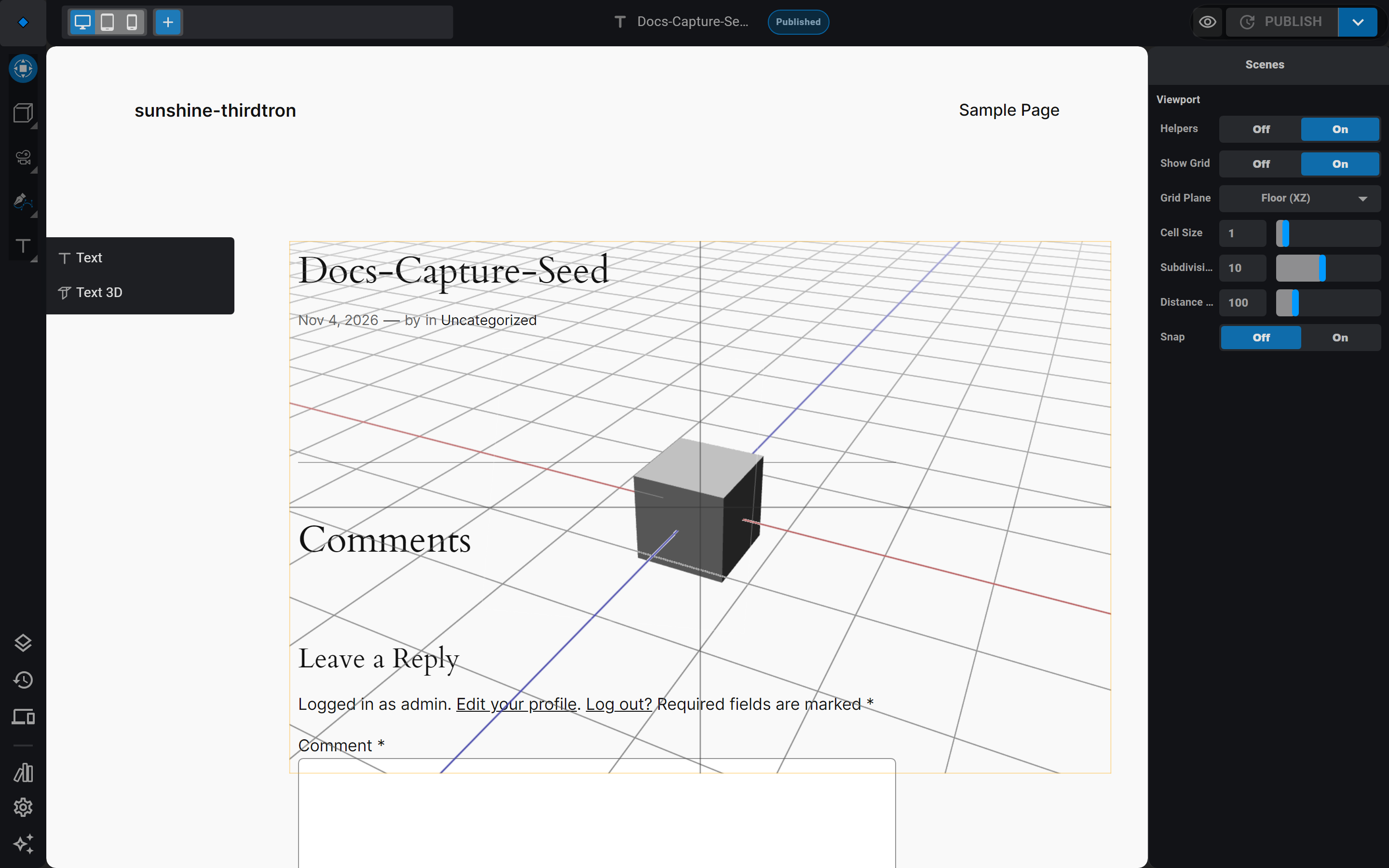
Pick Text from the rail's Typography flyout: a text object lands in the scene with placeholder content, ready for you to select and type over.
The Text panel on the right holds everything: the content box, font size, line height, and letter spacing, the font picker with weight, alignment and case groups, and the text color.
Text lives inside a frame — the box you see when it's selected. The frame is the exception to the usual resize-handle rule: dragging a selection handle does not squash the letters, it re-wraps the text inside a wider or taller frame. The auto-axis frame follows the glyphs until you set it; your typed content always stays editable.
Text keeps its own crisp rendering at any size and carries its color on the object — it does not take material layers (that is what Text 3D is for).
Text 3D: real extruded geometry
Text 3D is a true mesh: the glyphs are extruded into solid geometry with depth, optional bevel, and smoothing — a full member of the scene that takes material layers, casts shadows, and collides.
In the Shape section of its panel you control the extrusion: curve segments (outline smoothness), bevel with depth and resolution, and smooth to recompute clean normals.
Convert to geometry
When you want to sculpt the letters, click Convert to Geometry in the Shape section. The extruded shape bakes into an editable mesh in one undo step and drops you into mesh edit mode. Conversion is a one-way door: the text settings, bevel controls, and the Convert button make way for mesh dimensions — the object is now pure geometry, and retyping no longer applies. Convert when you're done iterating on the words, not before.
Fonts
Both text tools share the font pipeline. Pick a font from your library — Google Fonts resolve to a renderable TrueType file automatically, and fonts you upload work too. The resolved file is stored with the object, so the published page always shows the exact font you chose without any extra lookups.
Pick nothing and Volux falls back to built-in defaults — a clean sans for Text, a classic sans for Text 3D.
Curves: draw, shape, fill
The Curves category carries four tools, and the Curve Pen is the default:
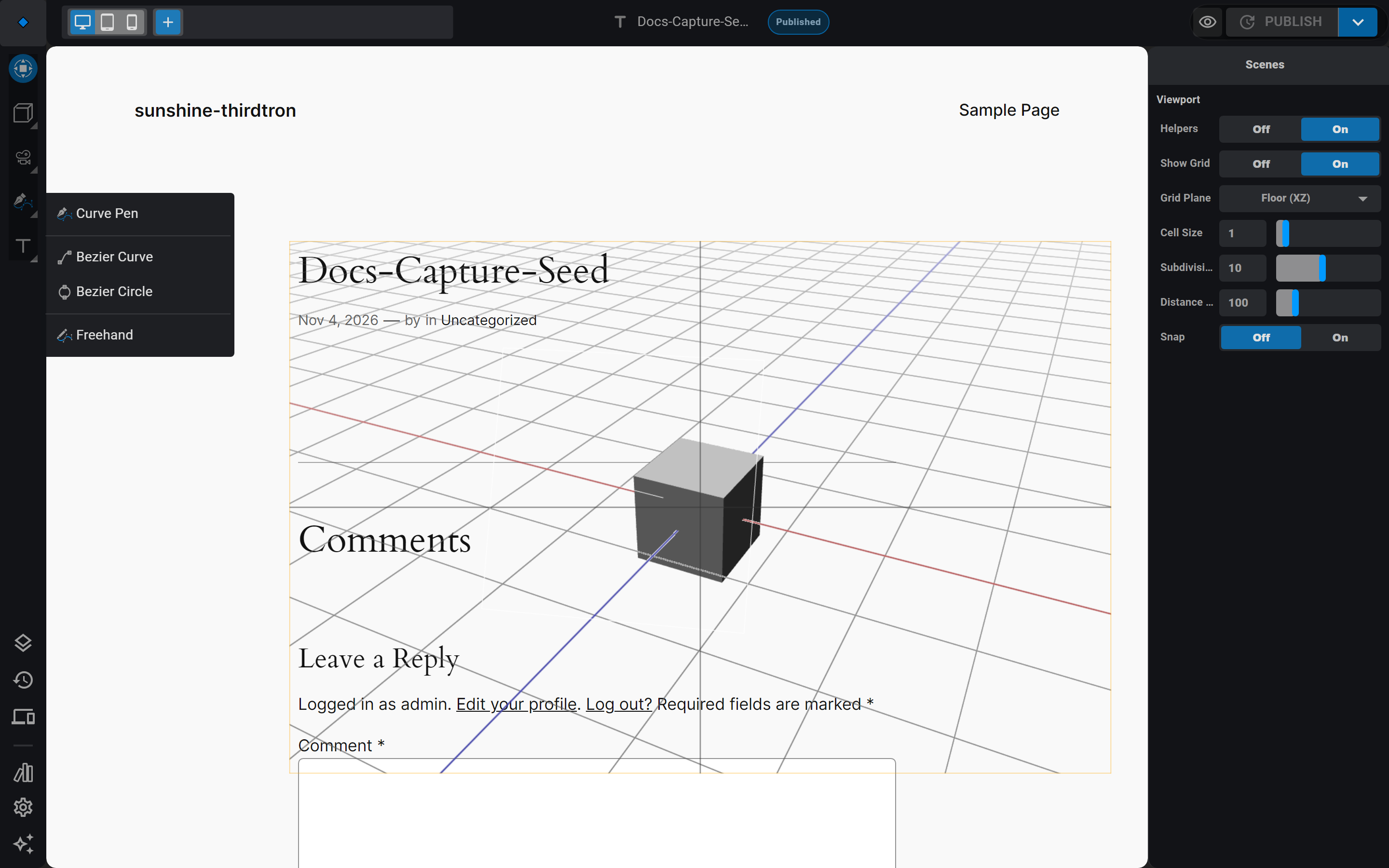
- Curve Pen — draw Bézier curves point by point: click empty space to start a curve, drag from its endpoint to pull out the next point with handles, and click-drag a segment to bend it. Double-click a point to cycle its handle style; close the shape by dragging an endpoint onto the other one.
- Bezier Curve — adds a ready-made open curve with two points.
- Bezier Circle — adds a closed four-point circle, ready to shape.
- Freehand — draw a stroke with the pointer; it converts to a smooth Bézier curve on release, closing itself into a ring when the ends meet.
Select a curve and press Tab — or click it with the Curve Pen — to enter its edit session: points and colored handles appear in the viewport (color follows the handle type), you can insert points on the curve, delete points, drag handles to reshape, and pull the curve into loops. Every drag is a fluid, undoable gesture.
From line to surface
By default a curve renders as a swept tube. The panel's Geometry controls thicken and shape it — offset, extrude, and bevel depth with resolution — while resolution sets how smooth the curve interpolates.
Switch Shape to 2D and the curve becomes a filled flat shape instead of a tube: an open curve fills as a closed ring, and the fill mode chooses which side renders. Editing a 2D curve keeps every point locked flat.
Like Text 3D, curves carry material layers and can be baked with Convert to Geometry into a fully editable mesh.
Next
- Materials (Layers) — surface Text 3D and curves with layers.
- Modifiers & Constraints — bend and twist what you drew.
- 3D Objects & Mesh Editing — sculpt converted geometry in mesh edit mode.
Materials (Layers)
How materials are stacks of layers that blend top-down, the thirteen layer kinds, and what changes rebuild versus apply live.
Modifiers & Constraints
Non-destructive modifier stacks that reshape meshes, and constraint rules that pose and aim objects — when to reach for which.
Last updated on