Modifiers & Constraints
Non-destructive modifier stacks that reshape meshes, and constraint rules that pose and aim objects — when to reach for which.
Modifiers and constraints are the two non-destructive "operator" tools. A modifier changes an object's shape — smooth it, reduce it, repeat it — without touching the original mesh. A constraint changes an object's pose — aim it at something, follow a path, keep a distance — as a live rule instead of a baked transform. This page covers both and tells you when to reach for which.
The modifier stack
Select a mesh and open the Modifiers section of its panel. Add operators from the + menu; they stack as cards and apply in order, each taking the previous one's output.
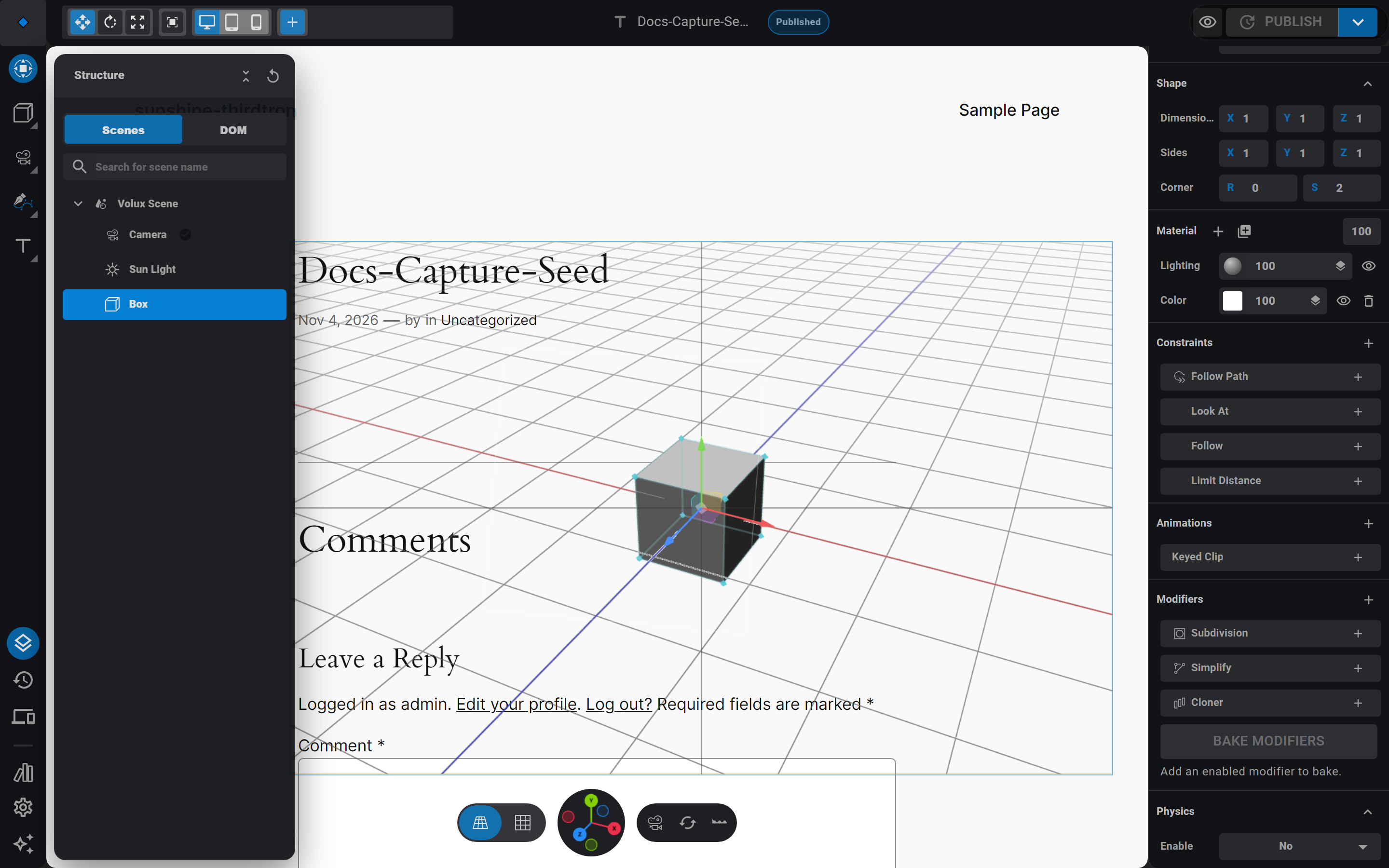
Volux ships three modifiers:
- Subdivision — smooths the mesh by splitting every face. The levels setting goes from 0 to 6; each level quadruples the face count, so a blocky cube becomes a rounded pebble.
- Simplify — the opposite: collapses triangles to reduce the mesh toward a target fraction of its original detail. Great for lightening heavy imports.
- Cloner — repeats the object into an array with per-axis offsets, constant or relative to the object's size.
Every card carries an enable switch, a rename, and a delete; drag the cards to reorder the stack — order changes the result. The original mesh is never touched, so any operator can be removed or retuned at any time. Editing the mesh in edit mode still edits the base: the session shows the modifier result as the solid so what you see is what visitors get.
Enabled per band
The stack itself — its order, its operators, their base settings — is authored once. Each modifier's enable switch can differ per responsive band: switch to mobile and turn a subdivision off there, and desktop keeps it on. See Responsive Bands.
Bake to geometry
When a modifier result is final, click Bake Modifiers: the stack's output freezes into the object's actual mesh and the stack clears in the same undo step. Baking keeps the object fully editable — add fresh modifiers on the baked mesh and bake again whenever you like.
Constraints: rules for pose
A constraint is a rule the object obeys every frame — not a one-time transform. Open the Constraints section (every object type has one: meshes, cameras, lights, text) and add one of the four:
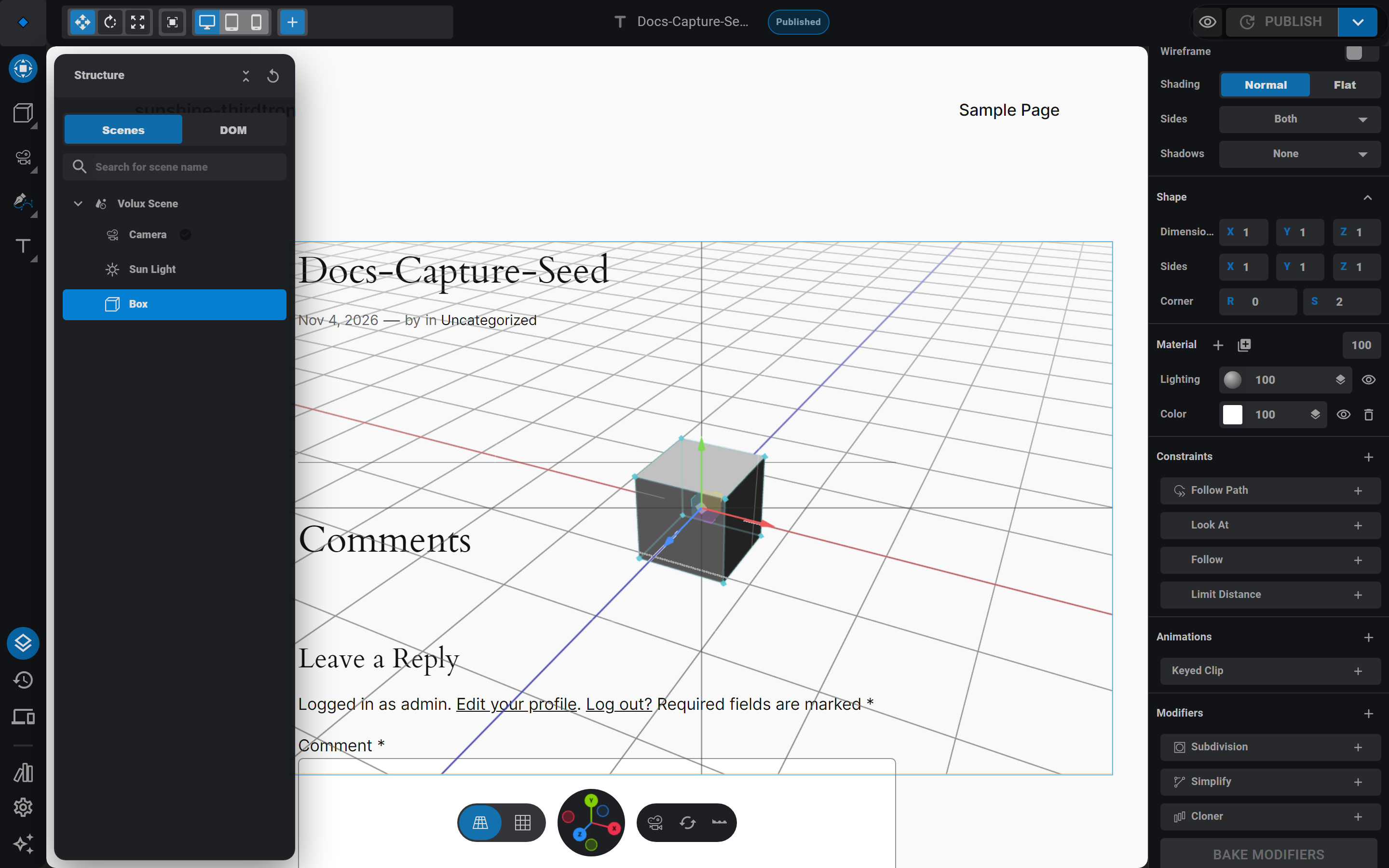
- Look At — the object turns to face its target every frame: a camera tracking a moving object, a sun pointing at your subject. Choose the aiming axis, and add damping for a soft, lagging turn.
- Follow Path — the object rides along a curve, positioned by arc length; an offset factor slides it along the path, and a follow toggle orients it to the path's direction — the classic rail cam.
- Follow — the object chases a target with a capped speed and a stop distance, so it closes in but never arrives — a hovering companion.
- Limit Distance — the object stays inside, outside, or exactly on a sphere around its target, with a soft falloff near the edge.
Targets can be other objects, the page's DOM elements, the editor cursor, or the object's own authored spot — handy for keeping an object within reach of where you placed it.
How strongly a rule pulls
Each constraint carries an enforce weight from 0 to 1 — 0 ignores the rule, 1 applies it fully, and in between blends your hand-placed transform with the rule's. Constraints also solve in stack order, so a look-at can chain after a follow-path and each blends by its own weight.
States and bands
Constraint settings and enforce are state material: a hover state can double the follow speed or crank the enforce weight, and states can refine those values per band. Whether a constraint is enabled at all is a per-band choice, like modifiers. See States.
Dragging a constrained object
Dragging an object that has constraints adjusts the object's own transform — the constraint then applies on top of where you left it. And when a drag-armed object is grabbed on the published page, its rule either holds through the grab or yields and recovers afterward — instant, eased, or springy — per the constraint's reaction setting.
Which one when
- Reshaping geometry — smoothing, lightening, repeating — is a modifier. If the question is "what does the surface look like," the answer lives in the Modifiers section.
- Re-posing or aiming — tracking, riding, chasing, limiting — is a constraint. If the question is "where does the object sit and how does it move," the answer lives in the Constraints section.
- They compose: ride a curve (constraint) to the right spot, then clone the object (modifier) — and nothing you did is permanent until you bake.
Next
- States — tune constraint strength per interaction.
- Timeline & Keyframes — keyed motion, the third motion tool.
- 3D Objects & Mesh Editing — edit the base mesh under a live modifier preview.
Text & Curves
Live text, extruded Text 3D meshes with material layers, and the Bézier curve tools — pen, presets, and freehand draw.
Feature Guides
Task-oriented guides for materials, events, physics, particles, and the other editor subsystems.
Last updated on