Documents & Scenes
The document container, the scenes it holds, and saving whole scenes as reusable snapshot copies.
A Volux document is one page container — a WordPress post or page edited in the Volux editor. Inside it you build one or more scenes, each a self-contained 3D world that renders on top of the page. This page explains how documents and scenes fit together, where each scene appears on the page, and how to save an entire scene as a reusable snapshot.
The document is the container
Open a document and the editor loads everything it needs: its scenes, the page elements they render into, and the settings that shape them. The header strip shows the document's name and publish status; PUBLISH writes the whole document to WordPress in one click. Nothing outside the document is touched — every scene, object, and setting you author lives in this one container and travels with it.
Scenes are 3D layers on the page
Each scene is an independent 3D canvas layered over the page: its own objects, lights, cameras, sky, fog, and postprocessing. Scenes do not share objects — an object belongs to exactly one scene, and moving or deleting it never touches another scene.
You manage scenes in the Structure drawer's Scenes tab. Every new scene seeds a Camera and a Sun Light alongside it, so you start lit and framed.
Link a scene to a page element
A scene renders on the public page inside a page element — a hero div, a banner, the body itself. The link is a property of the scene, set in its panel.
- Select the scene — click Volux Scene in the structure tree.
- In the scene panel, open the Structure section and find the Linked element row. Click the pick button at its right end.
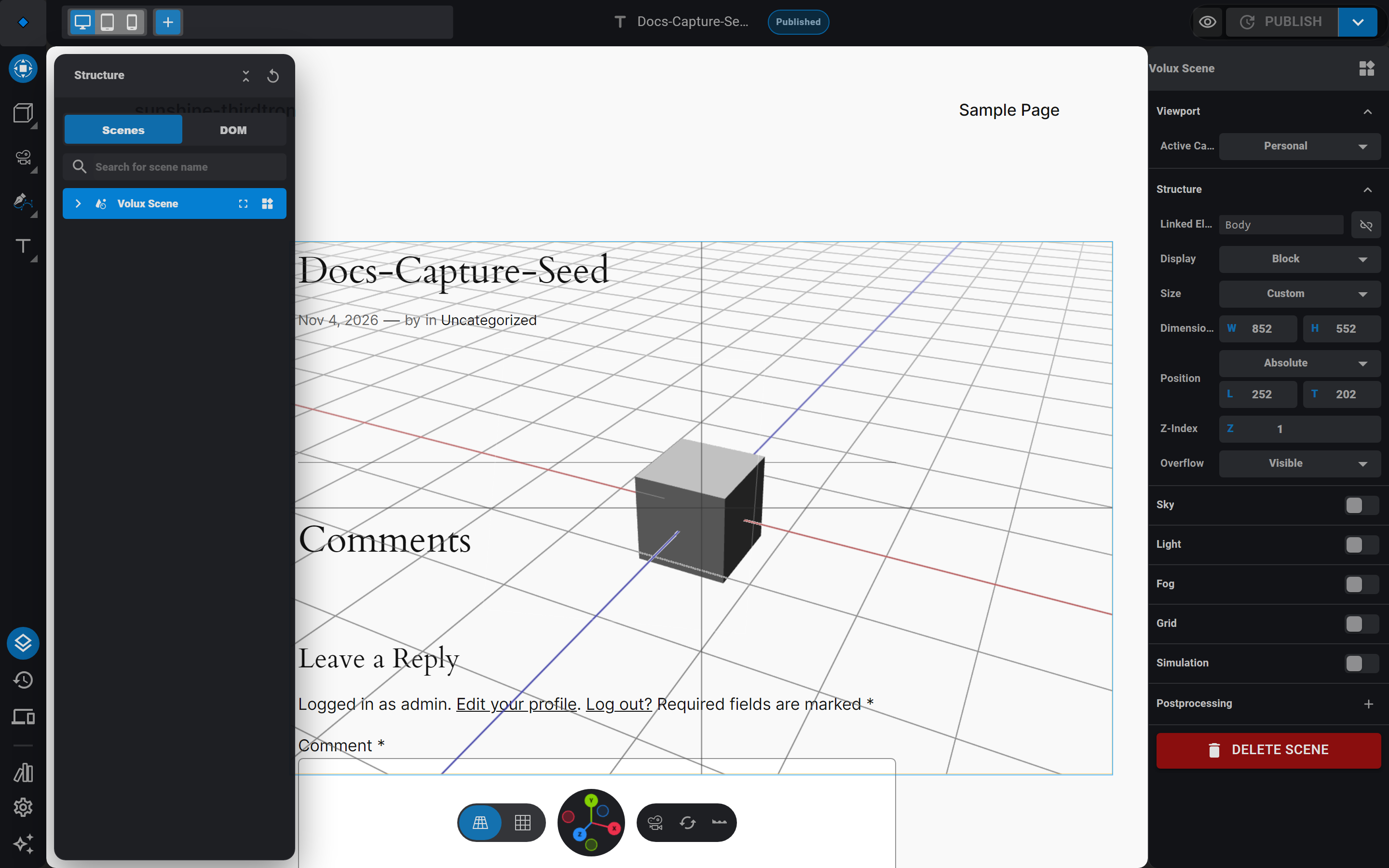
The scene's Structure section with the linked-element pick - Hover the preview: page elements highlight. Click one — the scene now renders inside it.
- To detach, click the unlink icon beside the row.
No link, nowhere to render
An unlinked scene never appears on the public site. If a scene is invisible after publishing, check its Linked element row first — a broken link shows a warning with a re-link action right in the panel.
Scenes never nest: you cannot link a scene inside another scene's element, and the editor refuses the pick if you try.
How many scenes you can have
The Free edition allows one scene per document — adding a second shows a warning and is refused. Pro lifts the cap with its multi-scene entitlement, so one document can layer several scenes across the page (each with its own linked element). See Editions & Licensing for what each tier includes.
Scene components: save a scene, reuse it anywhere
A scene component is a snapshot copy of an entire scene stored in My Assets. Saving captures every object in the scene — geometry, materials, states, events, modifiers, the whole rig.
Save a scene as a component
- Select the scene and click Save as component in the scene panel's header, or hover a scene row in the tree and click the save icon at its far right.
- Name it. The scene lands in My Assets as a
sceneasset.
Saved snapshots can be large, so the asset list shows only the row — the full payload loads on demand when you insert. Renaming a saved component changes the name only; the captured payload is kept untouched.
Insert a snapshot copy
- Open the structure drawer's DOM tab, hover an element row, and click the Add scene action at its right end. A menu lists your saved scene components plus New empty scene.
- Pick one. The first time, its payload loads; then the whole scene lands inside that element.
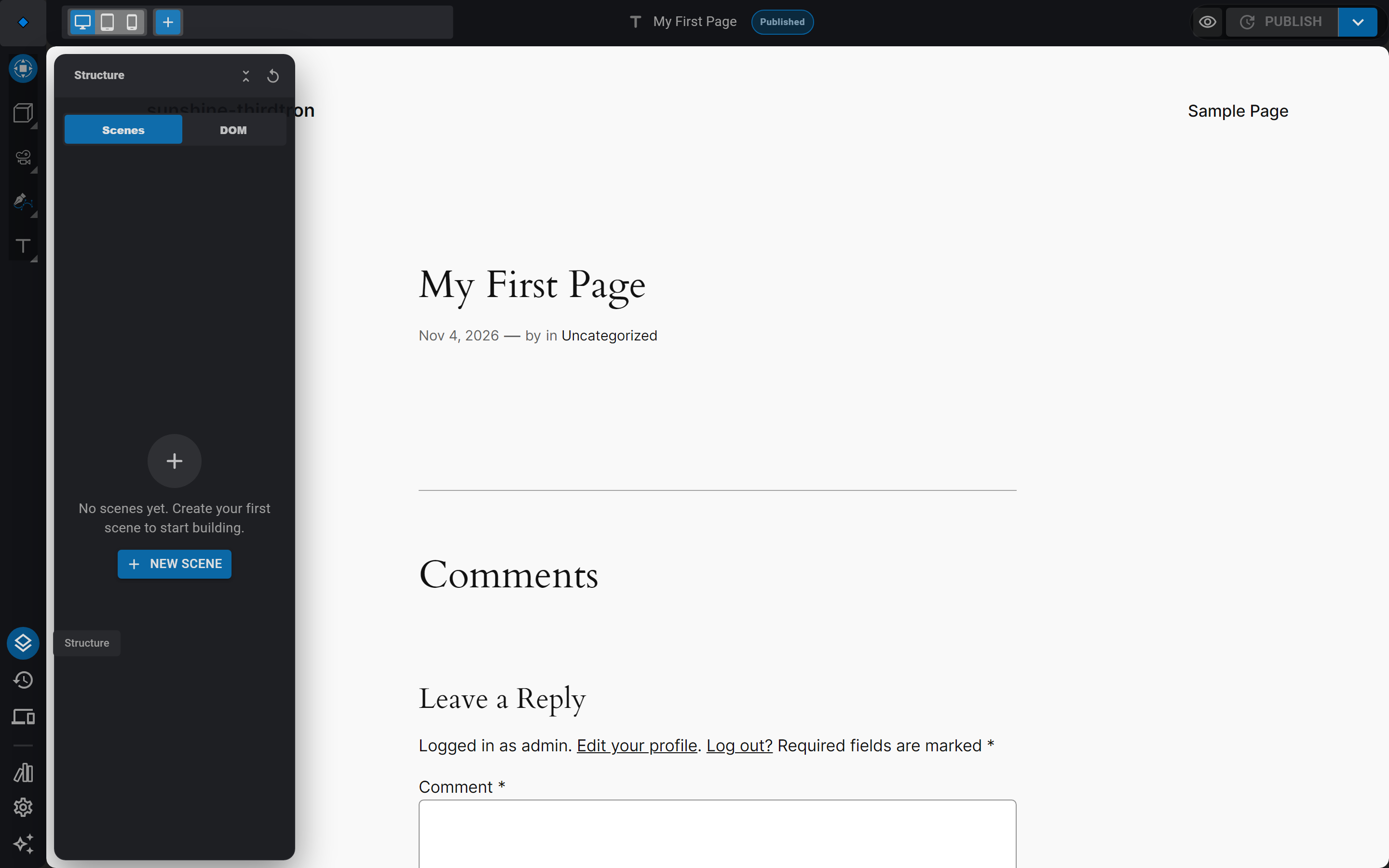
A scene in the structure tree with its seeded camera and sun
Inserting is one atomic undo step, and the copy is fully independent of the original:
- Every scene and object gets fresh ids, so you can insert the same component repeatedly without collisions.
- Parents, the default camera (including per-breakpoint choices), and cross-object references — event targets, constraint targets — are all rewritten to point at the new ids.
- Captured element links are stripped; the element you inserted into becomes the scene's linked element.
- The copy keeps its own camera and sun — nothing is re-seeded.
Editing the copy never affects the saved asset, and re-saving never affects previous inserts. Snapshots are copies, not live references.
Next
- Objects & Nodes — the nodes that fill a scene.
- States — how objects restyle when visitors interact.
- Assets & Libraries — managing everything you save.
Core Concepts
Scenes, Object3D nodes, per-prop band and state taxonomy, and the document model behind the editor.
Objects & Nodes
The Object3D node system — the scene tree, every node kind, transforms, parenting, selection, and visibility.
Last updated on