Audio (Speakers)Pro
Positional and ambient audio through speaker objects — spatial falloff, directional cones, and autoplay with the first-gesture unlock.
This feature is part of Volux Pro Pro. The Speaker object places sound in your scene: ambient audio that plays everywhere, or spatial audio that fades and pans as the camera moves relative to the speaker. This guide covers adding a speaker, tuning its source, and how playback behaves for visitors.
Add a speaker
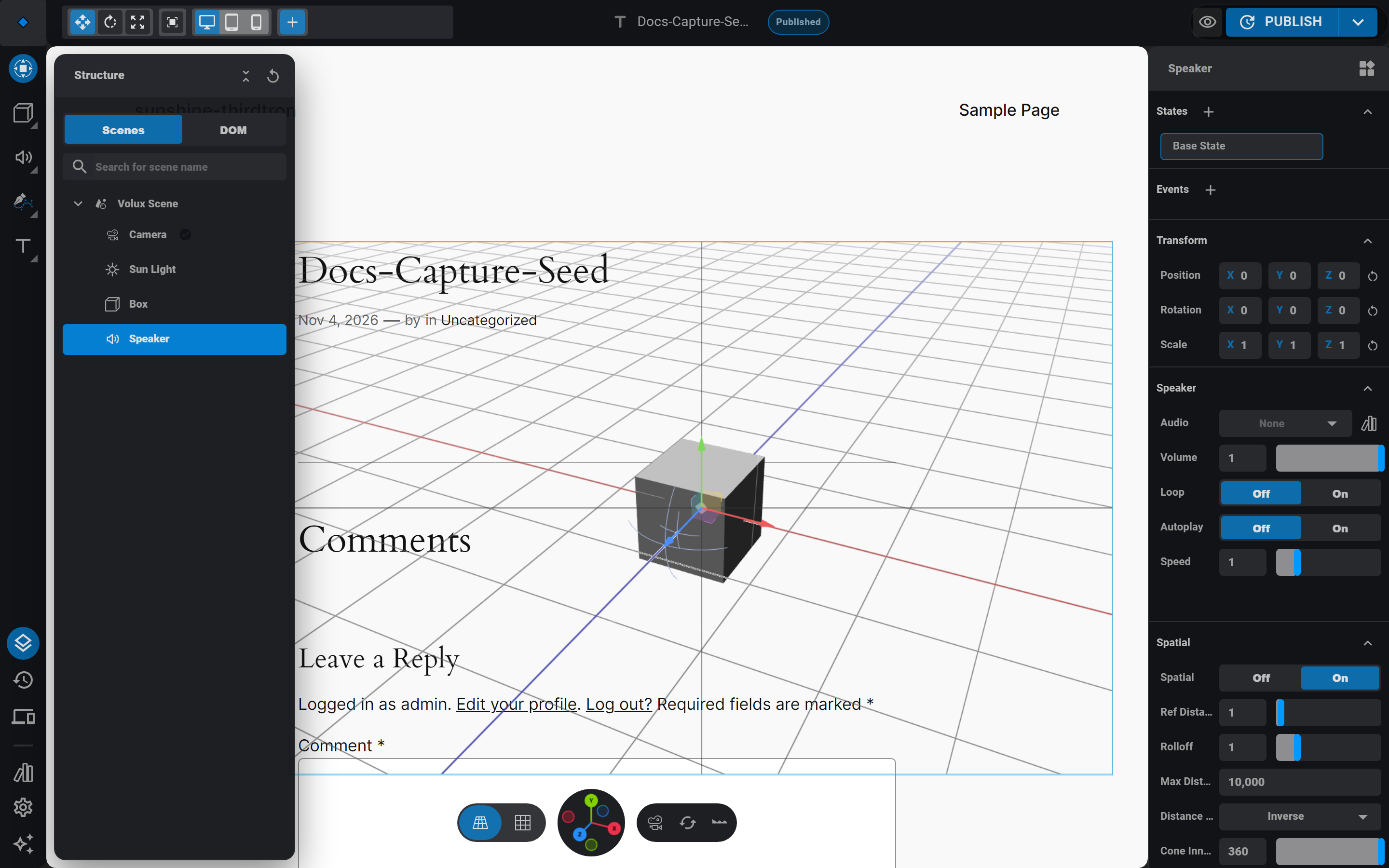
- Open the Objects tool flyout in the left rail (right-click the tool button) and pick Speaker.
- Select it in the Structure drawer. The panel's Speaker section holds the source: pick an audio asset from My Assets (mp3, wav, ogg, and m4a all decode).
- Set volume, speed (playback rate), loop, and autoplay.
The viewport shows an editor-only gizmo — a ring with wave arcs — pointing along the speaker's local forward direction. Aim the speaker by rotating it; the arcs are the direction its sound faces.
Preview in the editor
The section's Play / Pause / Stop row is an editor-only preview — the editor never autoplays anything, and what you hear here is exactly the configured source. Stop rewinds; pausing holds position.
Spatial audio
The Spatial section turns the speaker into a positional source:
- Spatial on enables distance behavior: ref distance (where attenuation begins), rolloff (how aggressively volume falls off), max distance, and the distance model — Inverse, Linear, or Exponential.
- The directional cone narrows the speaker's beam: cone inner angle (full volume inside), cone outer angle (fade zone), and outer gain (the volume outside the beam). The defaults — 360°, 360°, gain 0 — are an omnidirectional speaker.
Spatial audio is relative to the scene's camera: as the camera orbits past a directional speaker, its sound sweeps accordingly.
Source and spatial edits restart playback
Changing the attached file or flipping the spatial toggle rebuilds the underlying audio engine, so playback restarts from zero. Volume, loop, speed, and the cone rows hot-apply without a restart.
Playback for visitors
On the published page the speaker honors its autoplay setting. Browsers only allow sound after the visitor interacts with the page, so Volux arms a first-gesture unlock: the first click, tap, or keypress anywhere resumes the audio context, and autoplaying speakers start (or resume) from there.
The Speaker Control event action drives playback — play, pause, stop, or toggle — with an object picker for the target speaker; empty targets the event's own object. Wire it to a click trigger for a sound toggle button.
Hidden speakers keep playing
Scene visibility does not mute a speaker — hide an object and its audio continues. Stop it with a Speaker Control action instead.
Next
- Events & Actions — wire Speaker Control to triggers.
- Assets & Libraries — uploading audio into My Assets.
- Frontend Behavior — autoplay policies in full.
Video Layers & MaskingPro
Play video assets inside material layers, control them from events, and mask them against other layers.
Timeline & Keyframes
Key object transforms on the timeline — clips, auto-key, the K key, transport, and physics baking.
Last updated on