AI Builder (BYOK)Pro
The in-editor AI assistant that builds and edits scenes through the command bus — running on your own provider key.
This feature is part of Volux Pro Pro. The AI Builder is an in-editor assistant that builds and edits your scene for you: describe what you want, and it drives the same editor commands you would click yourself — adding objects, arranging transforms, building material layers, editing the page's elements. It runs on bring your own key: you connect an API key from your own AI provider account, and Volux never sees that key or your prompts. Nothing is billed through Volux and nothing is sent anywhere except your chosen provider.
Connect a provider
- Click the AI Assistant button at the bottom of the left rail. The panel opens with the provider setup.
- Pick a provider from the grid — OpenAI, Anthropic, OpenRouter, DeepSeek, Google AI, Groq, Mistral AI, xAI, Z.ai, or a Custom endpoint.
- Paste your API key (each provider links to the page that issues keys) and pick a model — models that support tool calling, which the assistant needs, are flagged.
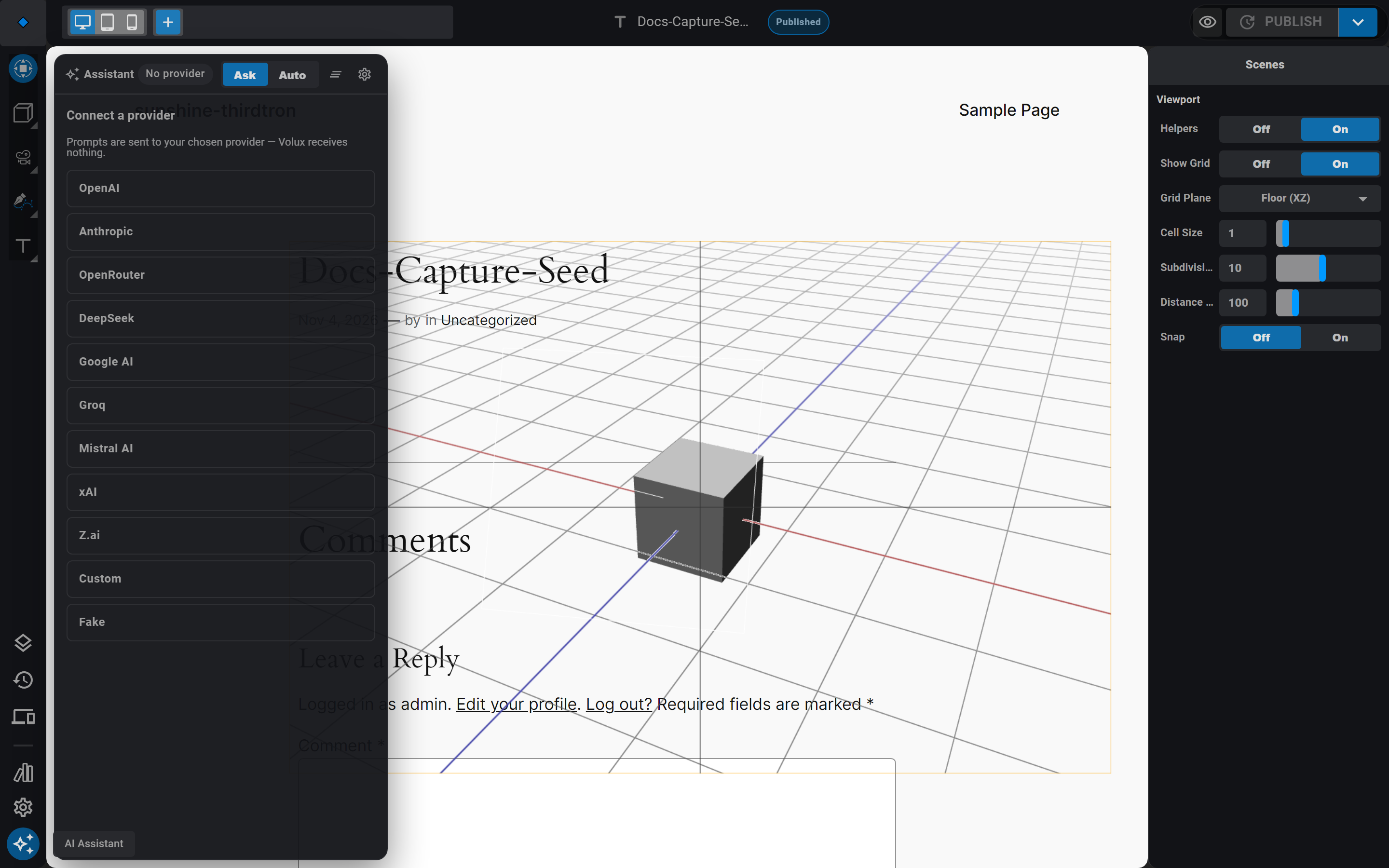
The key is validated against the provider before anything is stored — a typo or exhausted quota is caught right there, and a network failure leaves your stored settings untouched. Stored keys are kept per WordPress user, never displayed back in full (you'll see a masked form), and the assistant's requests run only through your own WordPress site — nothing touches Volux's servers.
Ask the assistant
- Type a request in the composer — "add a glossy red sphere next to the box and make it slowly rotate" — and press Enter.
- The assistant works in hops: it reads your scene, then executes commands. Each command appears as a card in the transcript with what it did.
- Watch the plan or steer it: type more while it works, or press Stop to end the turn.
Every turn shares one undo group — the Undo turn row under the assistant's reply reverts everything that turn did with a single click, exactly like Ctrl+Z.
How much it can do per turn
A turn runs at most 8 reasoning hops and 25 commands, and the assistant tells you plainly when it runs out. Ask follow-up questions — each turn gets its own budget.
Ask mode and Auto mode
The header toggle picks how bold the assistant is:
- Ask (default) — every batch of changes parks on an approve bar first. Approve to apply, decline to send them back; the turn continues either way.
- Auto — changes apply as it goes, no approval gate.
One thing confirms in both modes: deleting a scene always asks. Stop cancels a running turn and settles anything waiting on approval.
The transcript lives in the panel
Closing the panel discards the conversation — it is a working scratchpad, not a saved chat. Reopen and start fresh; your scene keeps every change it applied.
Start from the Launchpad
In wp-admin, the Volux → AI Builder page has three tabs: Connections (the same provider setup), Usage (token counts per model — no prompt content, just usage), and Launchpad. The Launchpad lists your posts and pages with a search box; pick one and Open in Volux AI editor opens that document with the assistant panel already up — a good starting point for "build me a landing page for this post".
Next
- Editor Tour — where the panel and its rail button live.
- Command Bus — the command surface the assistant drives.
- Documents & Scenes — what the assistant edits.
Assets & Libraries
Manage My Assets, browse the bundled Volux library and public sources, and reuse whole scenes as components.
Publishing
Ship scenes to the public frontend and keep them fast — shortcodes, frontend behavior, performance budgets, and troubleshooting.
Last updated on