Activation & License
Activate your license key or Envato purchase code, and what the grace states mean.
Volux Pro unlocks with a single license credential pasted on the License page. The site validates it against the license server once, keeps the verdict, and re-checks it automatically once a day. This page walks through the page, both credential shapes, and what happens when a license expires.
The License page tour
Open Volux → License in the dashboard menu.
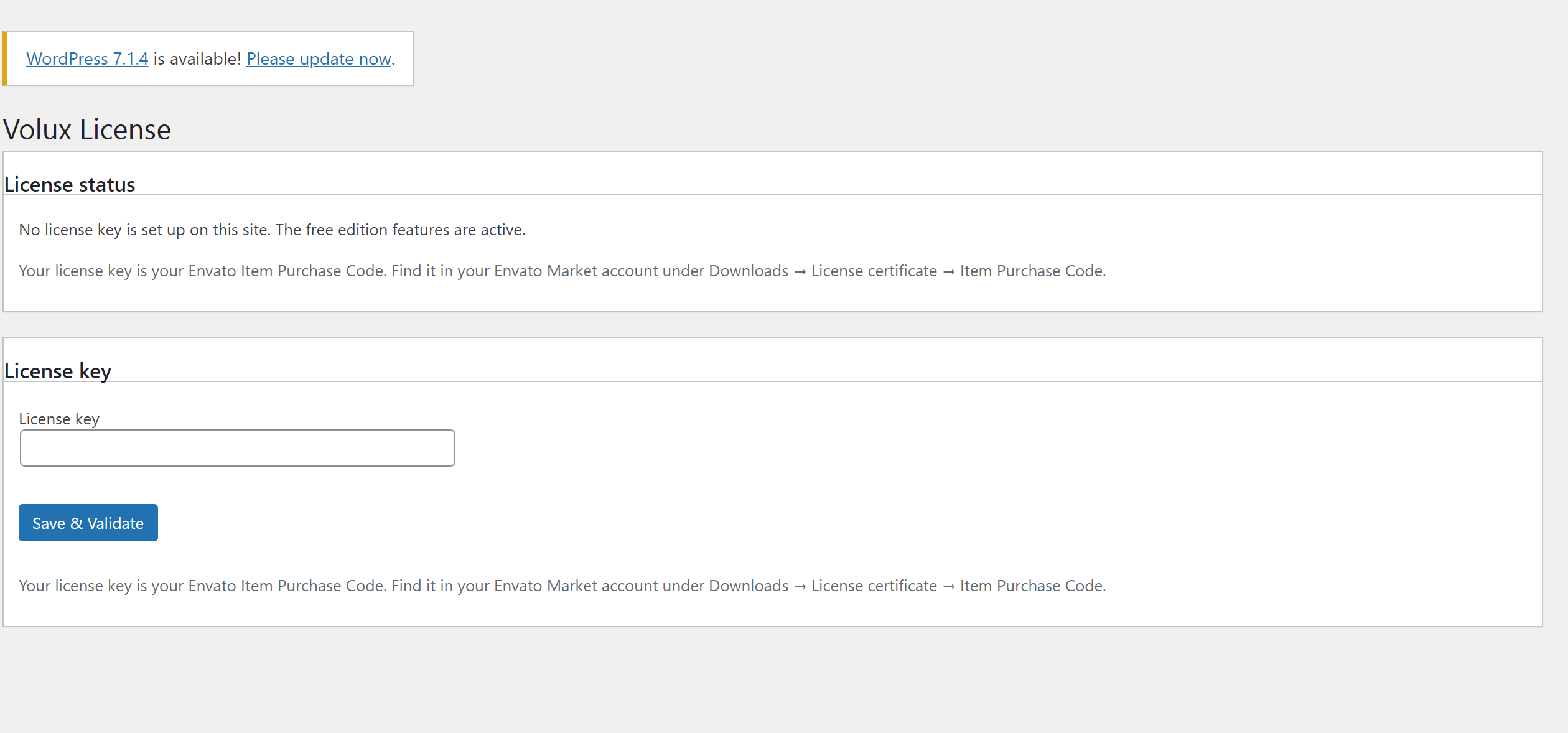
The page has three parts:
- Status card — the current verdict at a glance: License (Valid / Not valid), Why (the reason when not valid), Included features, Expires, and Last checked.
- License key — the field where activation happens, with the Save & Validate button.
- Deactivate this site — appears once a key is stored; use it to move the license to another site.
Activate a direct key
- Copy your license key from the Volux website. Direct keys look like
VOLUX-XXXX-XXXX-XXXX-XXXX. - Open Volux → License and paste it into the License key field.
- Click Save & Validate. WordPress contacts the license server server-side and stores the verdict — your browser never talks to the server directly.
- Reload the dashboard. The status card shows Valid, and the editor unlocks the Pro features on the next boot.
Activate with an Envato purchase code
The same field accepts an Envato Item Purchase Code — a 36-character UUID. The server recognizes the shape and verifies it against Envato, then mints it into a license on first validation. Afterwards it validates exactly like a direct key.
Where to find your purchase code
In your Envato Market account, open Downloads → License certificate → Item Purchase Code for the Volux item.
Activation is not instant in the editor
The REST check and the daily re-check only refresh the stored record — the editor reads it at boot. After a successful validation, reload the dashboard (or reopen the editor) to see Pro features unlock.
Grace states
A license that has expired, or that has hit its site-activation limit, does not immediately lock you out. When the server's answer carries a grace window, the stored record keeps your Pro features alive in a read-and-edit mode:
Under grace, content keeps working — creation is blocked
- Expired or over the activation limit (grace) — existing Pro content renders and edits normally; creating new Pro content (adding particles, physics, video layers, speakers, postprocessing, and the like) shows a warning and is denied.
- Revoked — no grace. Everything Pro is absent on the next boot.
- No license — same as revoked: nothing Pro is present.
Resolving the underlying cause — renewing the license, or freeing an activation slot — restores full behavior on the next validation.
Deactivate & transfer
A license has a limited number of activation slots. To move it to another site, open Volux → License on this site and click Deactivate this site. The stored key and verdict are deleted, the slot is freed, and the site falls back to the unlicensed state. The page is also where you re-activate after major changes, by saving the key again.
Troubleshooting
- The license server is unreachable — an unreachable server never revokes anything. Validation failures and timeouts leave the stored verdict untouched, so your site keeps its current state until a real answer arrives. Only a valid HTTP 200 response from the server can change the record.
- "The license has not been re-checked in the last 24 hours" — an informational note. The daily re-check has not run yet (or was missed); entitlements keep printing. It resolves itself on the next successful check.
- The status card says Not valid, but the key looks right — read the Why row. Common reasons are an expired license, an activation limit reached (deactivate an old site to free a slot), or a revoked license. Each maps to a grace state or its absence as described above.
Next
- Quick Start: Your First Page — put the unlocked editor to work.
- Editor Tour — learn every panel you are about to touch.
Requirements & Installation
Server, WordPress, and browser requirements, and installing the Pro plugin zip.
Quick Start: Your First Page
Build and publish a complete 3D page end-to-end in about fifteen minutes.
Last updated on