Requirements & Installation
Server, WordPress, and browser requirements, and installing the Pro plugin zip.
Volux is a WordPress plugin, so the server floors are WordPress floors: a site running WordPress 6.6 or newer on PHP 8.0 or newer, and a browser that can render WebGL2. This page checks each floor, then walks through installing and activating the plugin zip.
Requirements
| Requirement | Minimum | Why |
|---|---|---|
| WordPress | 6.6 | Volux registers its document types, editor route, and REST endpoints on the modern WP stack. |
| PHP | 8.0 | The plugin refuses to boot on older PHP and shows an admin notice instead. |
| Node.js | not required | Everything runs in WordPress and the browser; no build step on your server. |
| Browser | WebGL2 | The editor viewport renders through WebGL2 in Chrome, Edge, Firefox, and Safari. |
WebGL2 is the gate
If WebGL2 is disabled or unavailable, the editor viewport cannot render. Headless environments and some remote-desktop or VM setups disable GPU access — test in a normal desktop browser first. GPU particles additionally need the EXT_color_buffer_float WebGL2 extension; without it, particle emitters render nothing while the rest of the editor keeps working.
Get the plugin
Volux Pro is distributed as an installable zip from two purchase channels:
- Direct — buy on the Volux website and download
volux-full.zipfrom your account. - Envato — buy on CodeCanyon and download
volux-envato.zipfrom your Envato Downloads page.
Both zips are the same full build; only the license credential differs (a Volux key or an Envato purchase code — see Activation & License).
Install the plugin
- In your WordPress dashboard go to Plugins → Add New.
- Click Upload Plugin at the top of the screen.
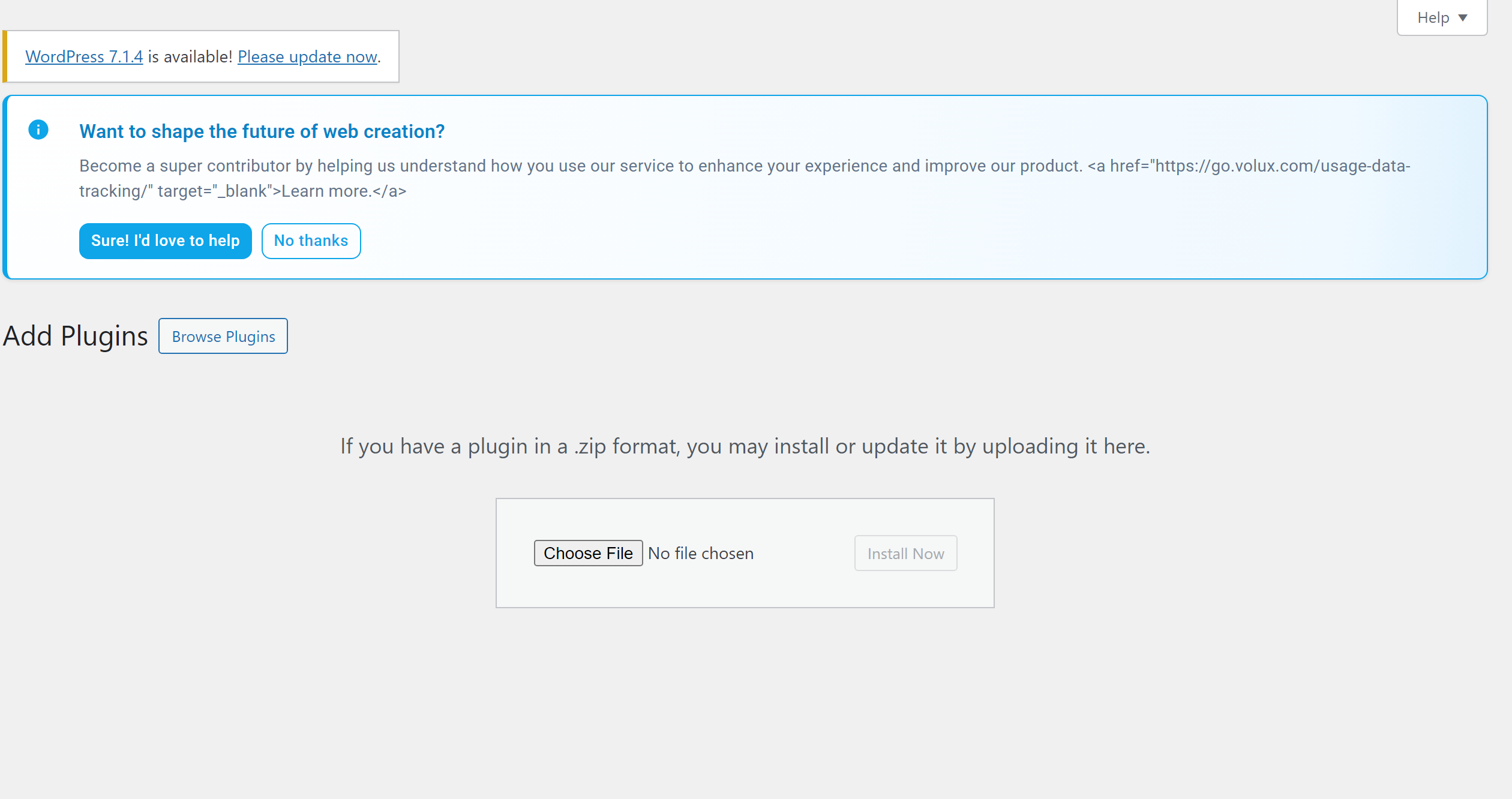
Plugins → Add New → the upload form - Choose the Volux zip you downloaded and click Install Now.
- When the install finishes, click Activate Plugin.
Updating later
When a new version ships, repeat the same upload with the fresh zip — WordPress replaces the plugin in place. Your documents and settings live in the database and survive updates.
Verify the install
- Open Volux in the dashboard menu — the dashboard loads with its welcome card.
- Click New post with Volux. The Volux editor opens for a fresh WordPress post.
- If the editor shell loads but the viewport stays blank, re-check the WebGL2 requirement before anything else.
Next
- Activation & License — unlock Pro with your key or purchase code.
- Quick Start: Your First Page — build and publish a scene end to end.
Introduction
What Volux is, who it is for, and how this documentation is organized.
Activation & License
Activate your license key or Envato purchase code, and what the grace states mean.
Last updated on