Cameras
The editor view versus the scene camera, default cameras per band, lock-to-view, and switching cameras at runtime.
What you see while editing and what visitors see are two different viewpoints. The editor gives you a free navigation view; each scene carries its own camera nodes that decide how the page renders publicly. This page explains the two, how to aim and lock them, and how visitors can switch between cameras.
A camera is a node
Every scene seeds a Camera node at creation, visible in the scene tree alongside your objects. A camera renders as a frustum wireframe you can select and move with the gizmo like any node — it has no resize handles, since scaling a camera means nothing.
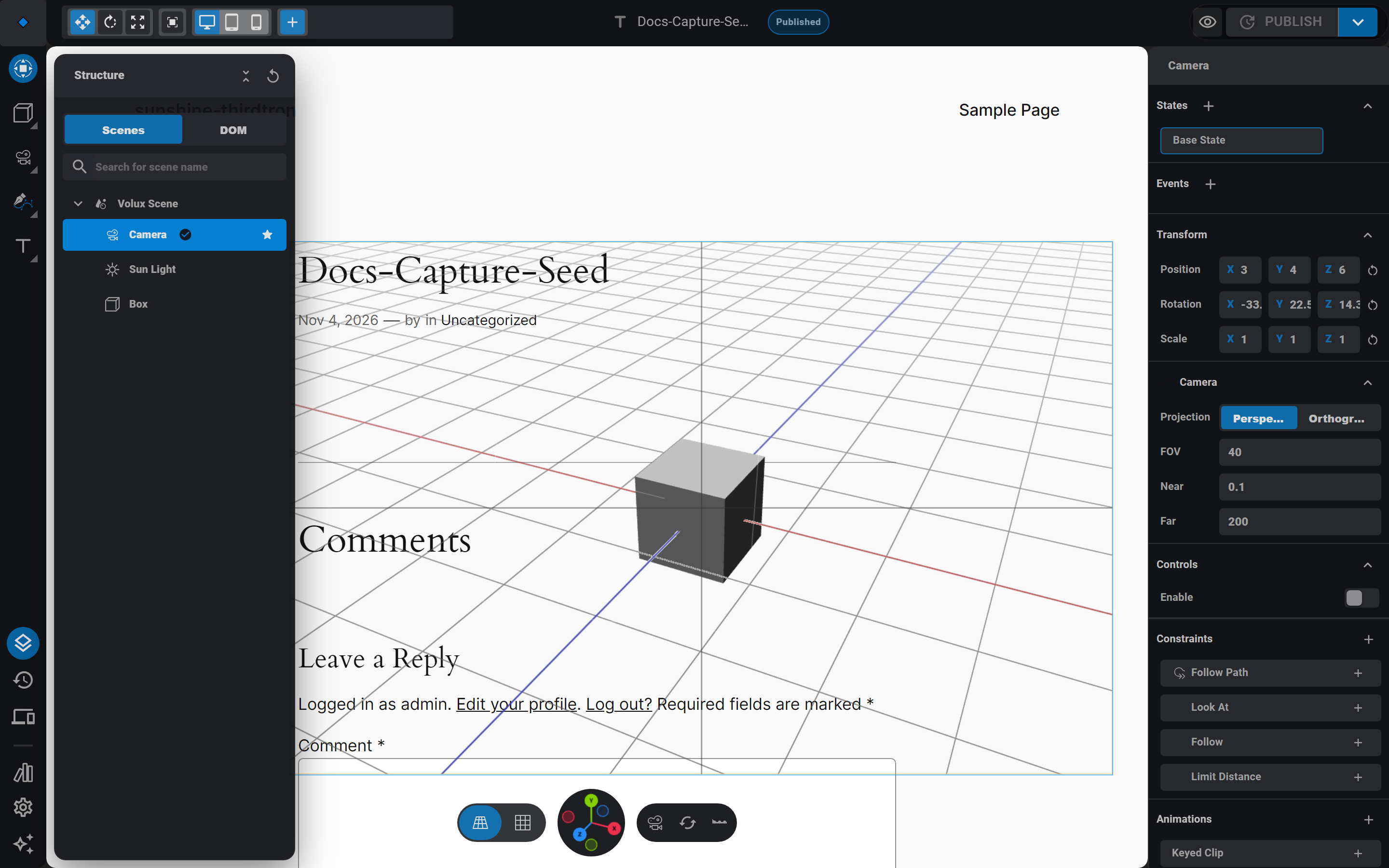
The two viewpoints
- The editor view is just for you. Navigate freely — drag to orbit, scroll to zoom — without touching any scene camera. This free-floating viewpoint is the personal view: it is editor-only, never saved into the document, and never rendered on the public site. Moving it never dirties the document, never saves, and never appears in undo. Its pose is remembered as a per-user editor preference and restored next time.
- The scene camera is a real node in the tree. The public page renders the scene through the camera marked as default — that default is what publishing serializes.
The gizmo nav pill at the stage's bottom edge switches between the two: the camera-toggle button swaps the editor view between the scene's default camera and your personal view (Numpad 0 does the same), and Reset restores the default framing. The left side of the pill toggles perspective and orthographic projection (Numpad 5), and Numpad 1 / 3 / 7 snap the view to front, side, and top (Ctrl flips to the opposite side).
Set the default camera
The scene's default camera is what visitors see — set it by aiming:
- Select the camera in the structure tree (or the viewport) and move it with the gizmo.
- Use the Set as Default Camera action — on the tree row's hover actions or the viewport right-click menu. The default camera carries a badge in the tree and in its panel.
Selecting a real camera also locks your view to it: navigating the viewport now drives that camera. The transform writes back onto the camera node — on drag end and when the wheel pauses — so each navigation gesture is one undo step. What you frame is what visitors will get. To break the lock, switch back to the personal view with the gizmo nav.
Aim precisely
Select the camera and drag the gizmo to aim it — cameras (like sun and spot lights) look along their local −Z axis. For a fine-grained view, selecting a camera opens a floating live mini preview rendered from that camera's frustum, with Snap (jump your editor view to the camera) and Use (make it the scene's default camera) actions.
A default camera per band
The default camera choice is stored per responsive band: a scene can render through camera A on desktop and camera B on mobile. Change bands with the header's band switcher and set the default again — each band remembers its own. See Responsive Bands.
Switching cameras at runtime
Visitors can switch cameras through events: add an event to any object and pick the Switch Camera action with a camera as its target — a click on a button can cut to a close-up camera. Every switch is a cut; there are no transition options to configure.
Runtime switches are temporary by design: they persist while the visitor stays on the page (even across band changes) but a reload returns to the authored default. The authored per-band default always wins in the document.
Let visitors orbit
A camera can hand its controls to the visitor. In the camera panel's Controls section, enable them and set the guardrails: minimum and maximum distance, polar and azimuth clamps in degrees, and a wheel-zoom toggle. On the public site the visitor orbits the scene from the active camera — clamps keep them inside your framing. Visitors get no controls when the active camera is driven by a constraint, since the constraint owns the pose.
Next
- Responsive Bands — per-device defaults for cameras and everything else.
- Events & Actions — wire Switch Camera and friends.
- Keyboard Shortcuts — every numpad shortcut.
Objects & Nodes
The Object3D node system — the scene tree, every node kind, transforms, parenting, selection, and visibility.
States
Interaction states that restyle objects and page elements when visitors hover, click, or scroll.
Last updated on